1
Reveal linear images
Apply a linked or unlinked automatic ScreenTransferFunction to selected open images without changing their pixel data.
Chapel Astro Utilities batch-processes open PixInsight images with focused tools: apply automatic screen stretches, turn long stacked master frame names into readable identifiers, save batches deliberately, and line up open windows to a chosen reference.
PixInsight can generate beautifully calibrated data, wildly long window names, and image windows that all open at different sizes. These utilities keep the workspace readable when you are moving fast.
Apply a linked or unlinked automatic ScreenTransferFunction to selected open images without changing their pixel data.
Use one image as the reference, then batch-match the other open windows to its zoom, frame size, and pixel dimensions when needed.
Batch-rename mono stacked masters into clean filter identifiers, then append processing-stage suffixes as the workflow develops.
Choose between batch rename-only, save-as output, and overwrite saves back to each image source folder.
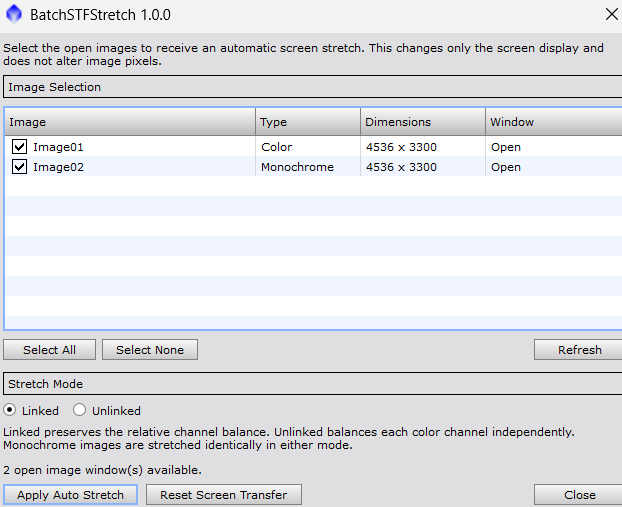
BatchSTFStretch brings PixInsight's familiar automatic screen stretch to a selectable batch. Check the images you want, choose how RGB channels should be treated, and apply or reset the display stretch together.
Make linear images visible, align the workspace for comparison, then clean the names and save each processing stage deliberately.
Select the linear images you want to inspect, choose linked or unlinked channel handling, and apply an automatic STF without altering image pixels.
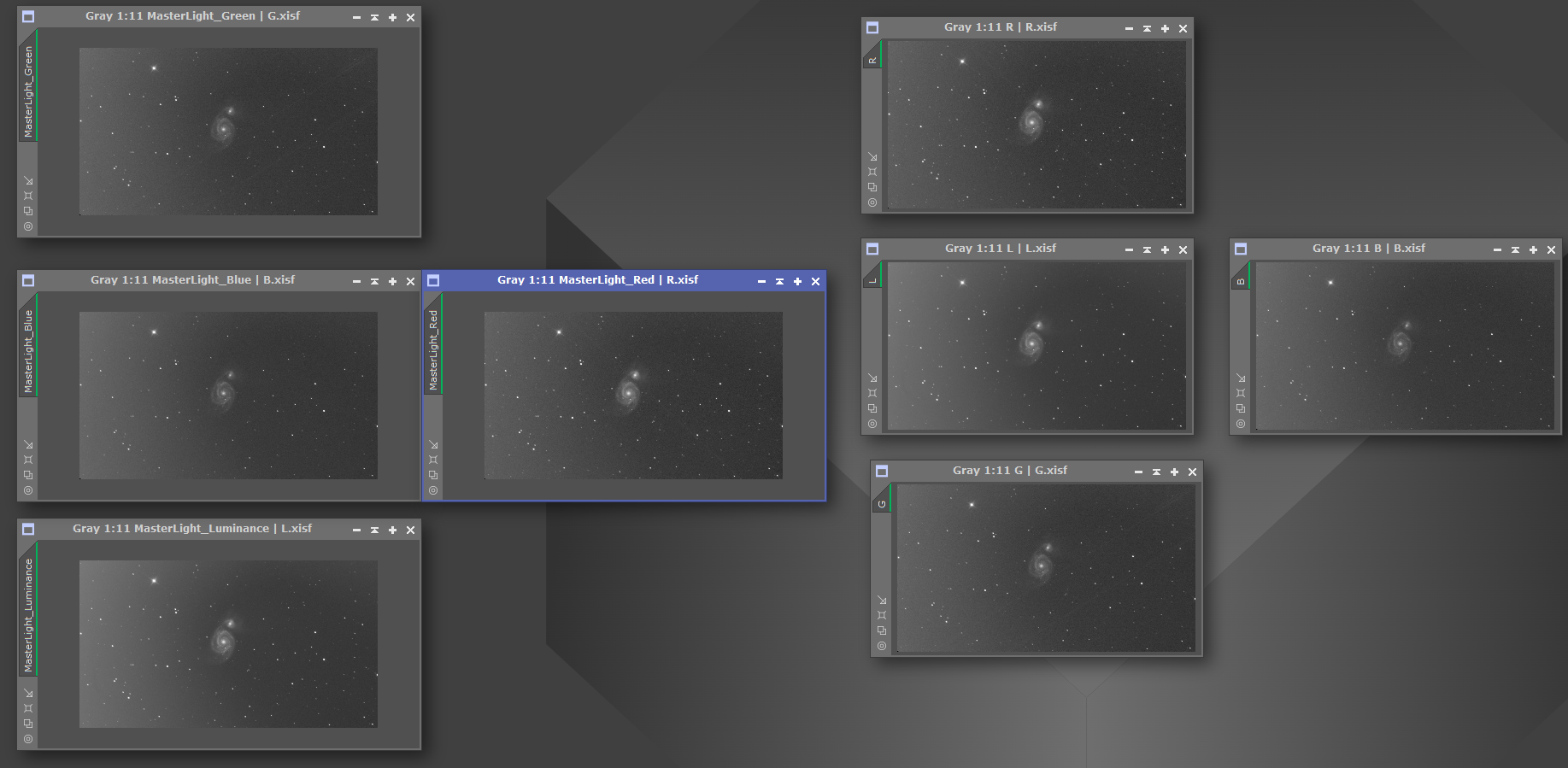
Select a reference image and batch-match the other open windows to its zoom and frame. If their pixel dimensions differ, the utility resamples them to the reference dimensions.
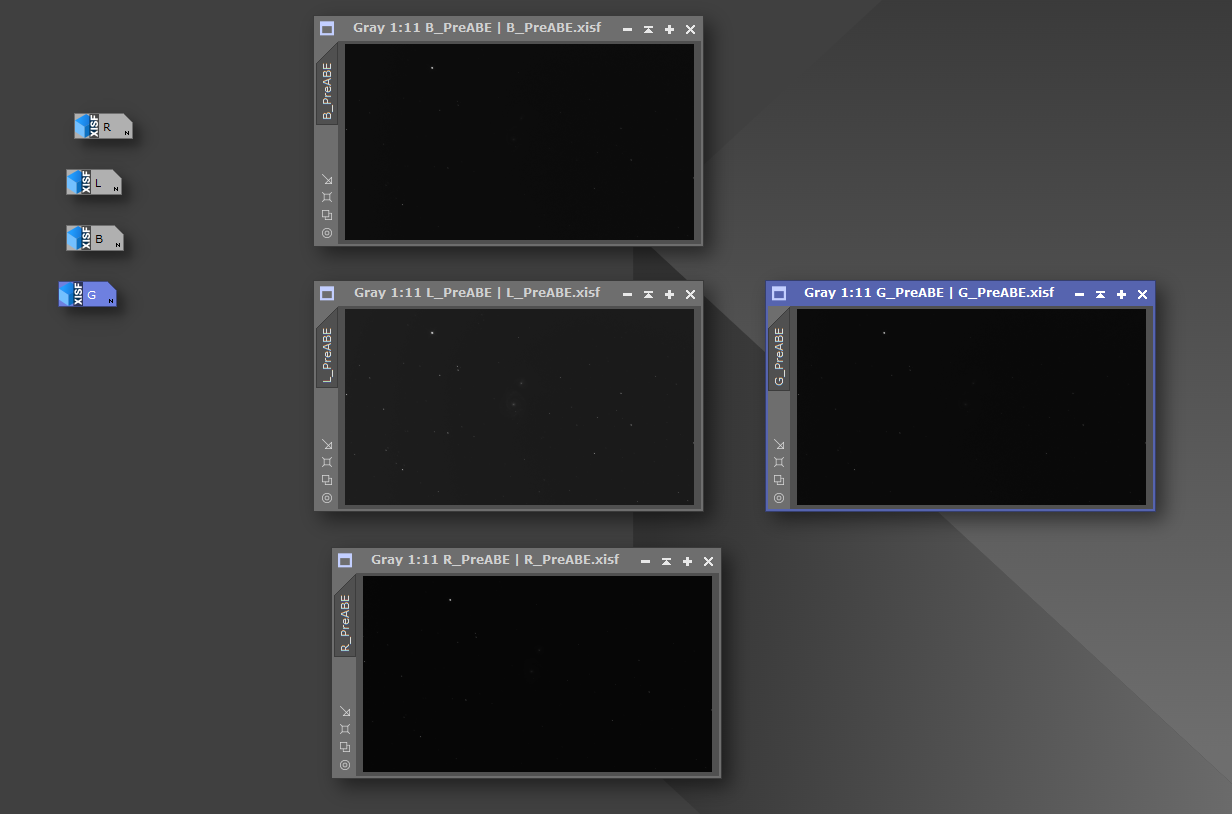
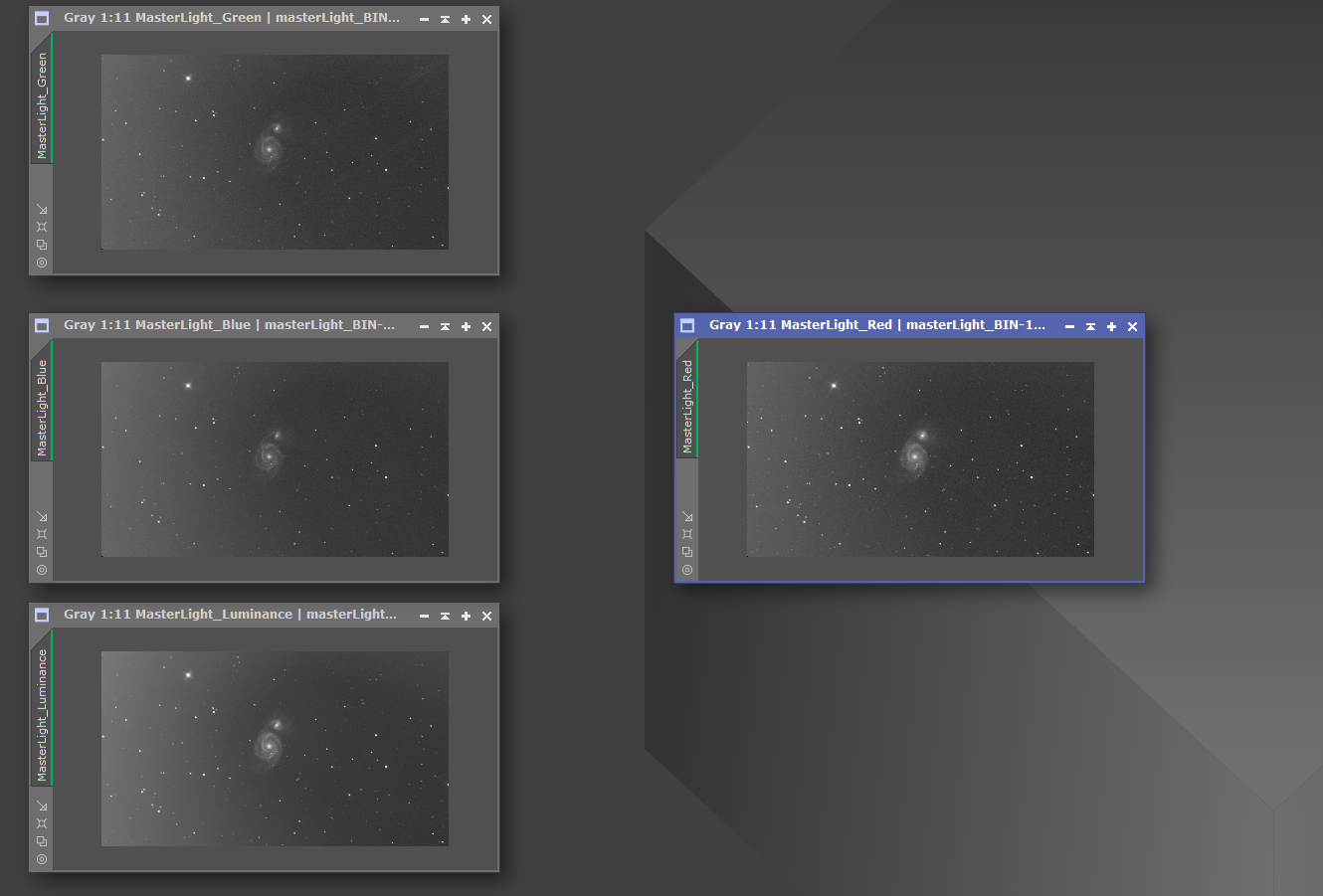
Follow the wizard to match words such as Red, Hydrogen, or Nofilter in the file path, caption, or image ID and batch-rename them to concise identifiers such as R, H, or OSC.
Append suffixes such as PreNoiseX or PostCrop, then save source-backed images in place or choose a folder for newly created images.

All three scripts live under the same PixInsight menu, but they solve different workspace problems.
A selectable batch utility for making linear images visible without changing their pixel data.
A wizard-led batch naming and save workflow for open image windows. It is especially useful straight after stacking, when mono master frames inherit long file names from the integration process, and it also handles OSC data through editable mappings.
A batch visual consistency tool for comparing open images. Choose the image that already looks right, then bring the rest of the workspace into line.
Add the repository once, then update from PixInsight whenever a new Chapel Astro Utilities package is published.
https://raw.githubusercontent.com/GrandPaClanger/pixinsight-toolbox-scripts/main/
Resources > Updates > Manage Repositories.Resources > Updates > Check for Updates.Script > Chapel Astro Utilities.Choose the utility for the job, select the open images involved, and use the focused controls below to stretch, rename, save, or align them.
OSC.Use this companion utility when open images need to match a selected reference image. It copies the reference zoom and attempts to match the frame size where PixInsight exposes that geometry.
Script > Chapel Astro Utilities > MatchOpenImageSizes.ImageBatchManager separately from the same Chapel Astro Utilities menu.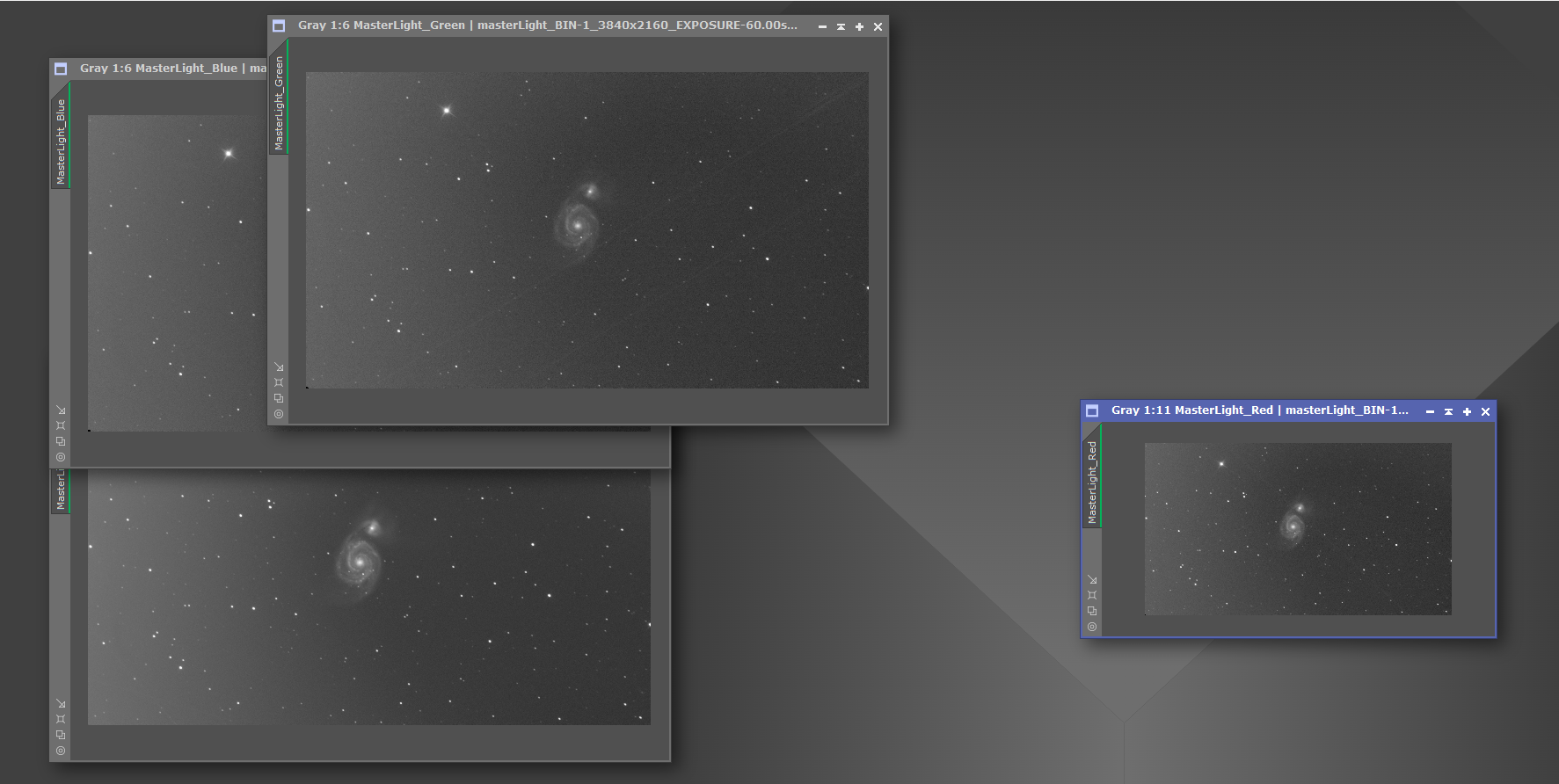
These scripts are intentionally direct, but they include guardrails for the naming and saving decisions that are easiest to get wrong late at night.
Chapel Astro Utilities keeps PixInsight workspaces legible and consistent from stacked masters through comparison, processing, and final pre-stretch saves.